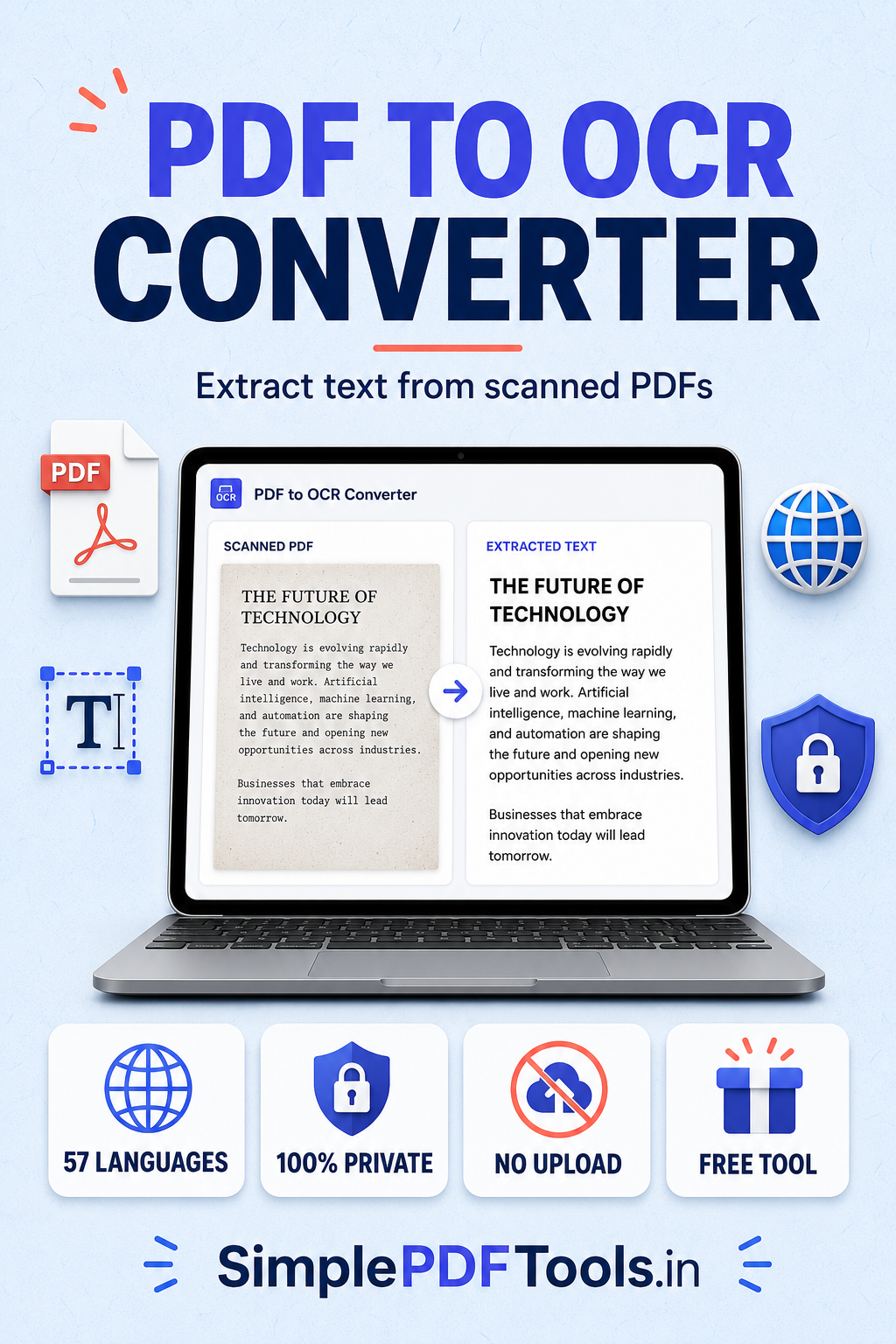
Quick answer: Upload your scanned PDF to a PDF OCR tool, select the document language, run OCR, review the extracted text, and export it. A clear, upright scan produces the best result.
What does it mean to convert a scanned PDF to editable text?
There are two common types of PDF. A digital PDF already contains selectable text. A scanned PDF is different: its pages are photographs or scans of paper, so selecting a sentence may not work at all.
OCR reads the visual shapes of letters and turns them into machine-readable characters. After the conversion, you can search for names, copy a paragraph into a document, create notes, or save the results as text.
Text is stored as pixels in an image. Search and copy usually do not work.
Text becomes searchable and reusable while the document remains easy to read.
Ready to convert your document?
Use the free PDF to OCR Converter. It works in your browser and supports 57 languages, including many Indian scripts.
Open PDF to OCR →How to convert a scanned PDF in 5 steps
Choose your scanned PDF
Select a clear PDF scan from your device. Use the original scan where possible instead of a screenshot or compressed copy.
Open the PDF to OCR Converter
Go to SimplePDFTools PDF to OCR and add the file. It opens in a page viewer before you run the conversion.
Select the correct document language
Choose the language used in the PDF, or use an appropriate mixed-language setting when the document contains more than one script.
Run OCR and check the extracted text
Run OCR for one page first if the document is important. Correct obvious recognition mistakes before exporting the complete result.
Export the text
Save the result in the format that fits your next task, such as plain text, CSV, JSON, a document, or a searchable PDF.
How to get better OCR results
OCR is most accurate when the source is clear. These small preparation steps can improve recognition before you convert anything:
- Use a scan that is sharp, well lit, and at least 300 DPI when possible.
- Keep pages upright. Rotate sideways or upside-down scans before running OCR.
- Avoid screenshots with shadows, folds, glare, or fingers covering text.
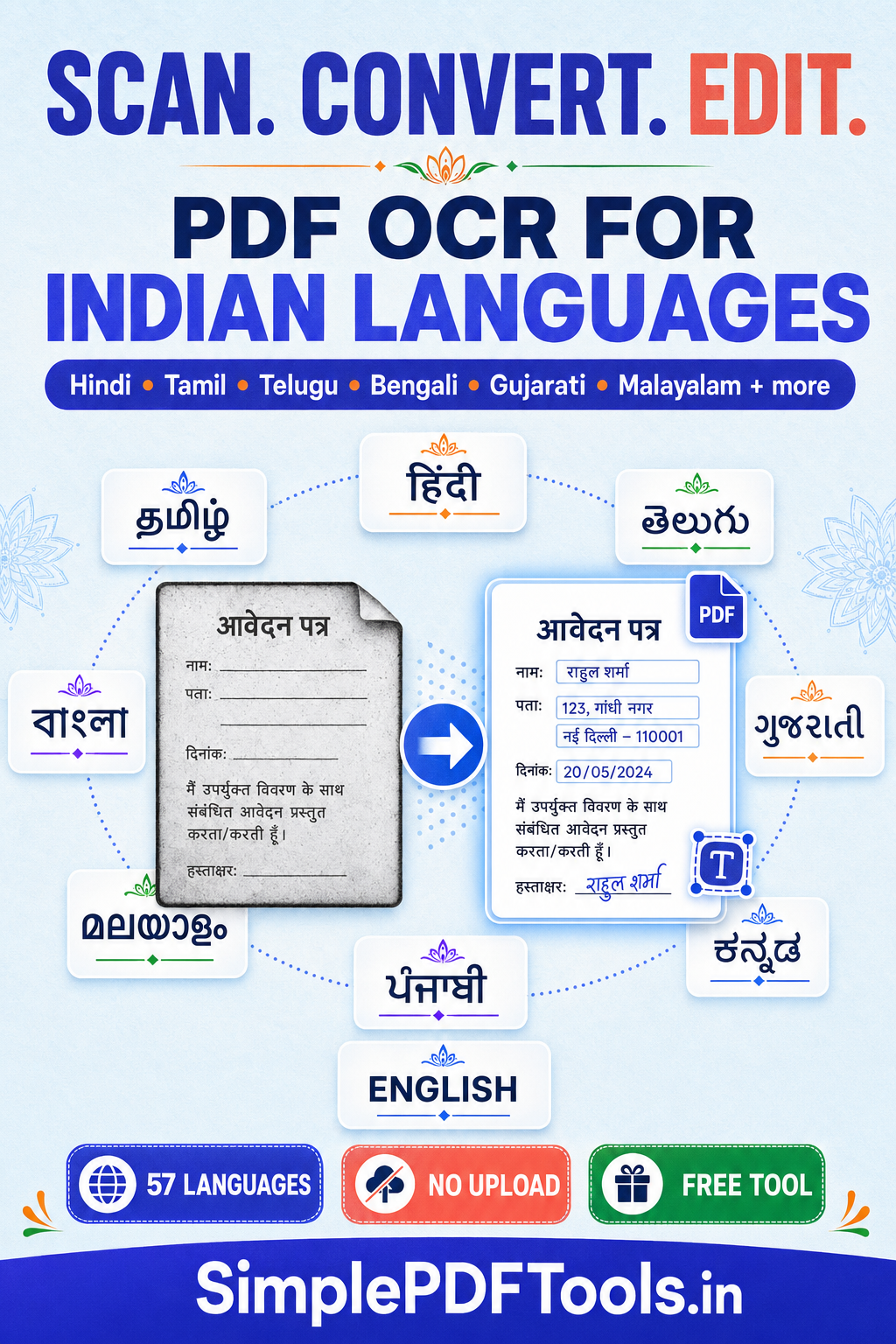
- Select the correct language, especially for Hindi, Tamil, Telugu, Arabic, Chinese, or mixed-script documents.
- Review names, numbers, addresses, dates, and tables carefully. These details need the closest check.
Convert documents in 57 languages
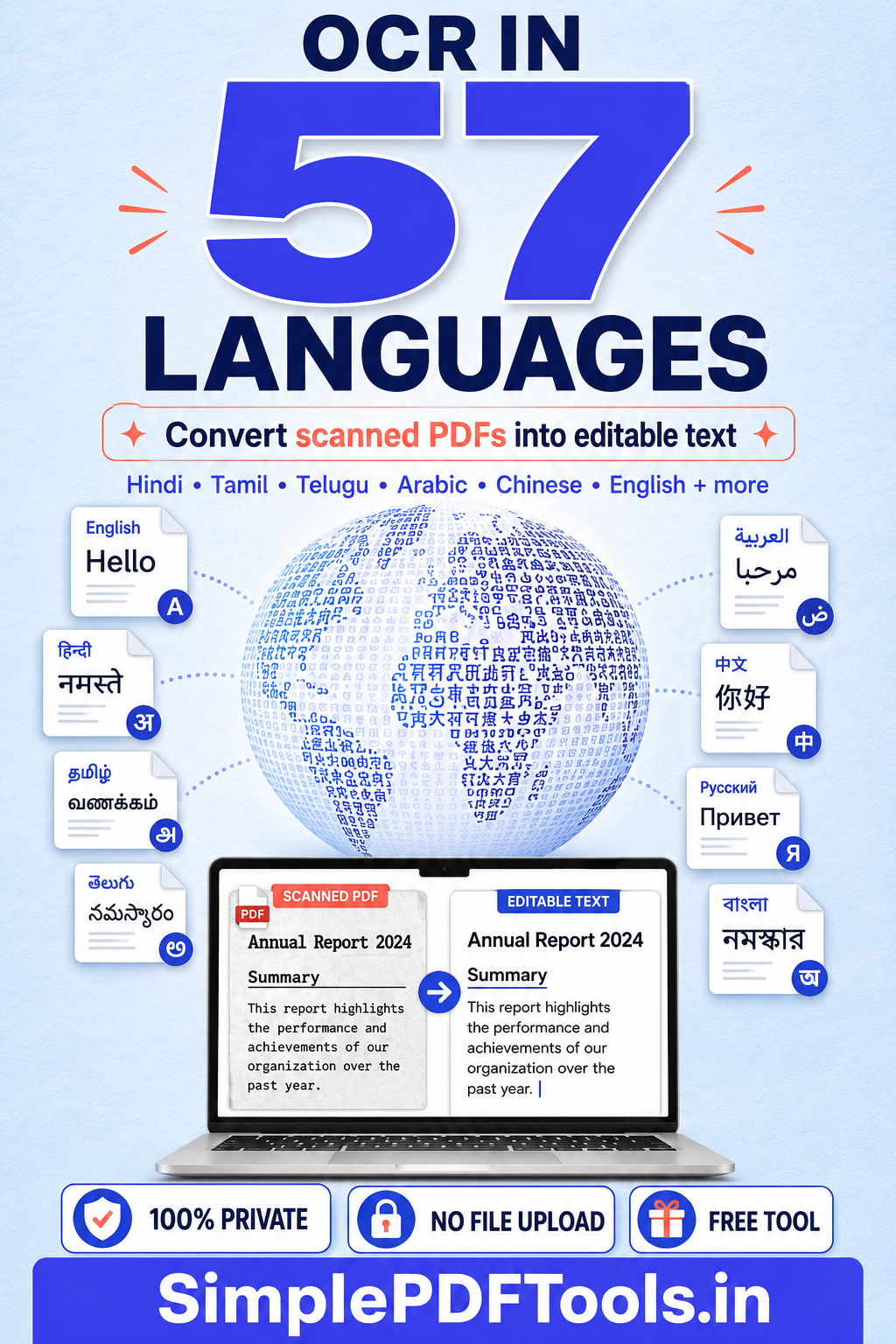
Many document workflows are multilingual. The SimplePDFTools OCR tool is designed to help with English and a wide range of other languages and scripts, including Hindi, Tamil, Telugu, Bengali, Gujarati, Malayalam, Kannada, Punjabi, Arabic, Chinese, Russian, and more.
For the best outcome, start with one primary language per page. If a document genuinely mixes languages, test a single page first to confirm the language setting gives clean text.
Why privacy matters when using OCR
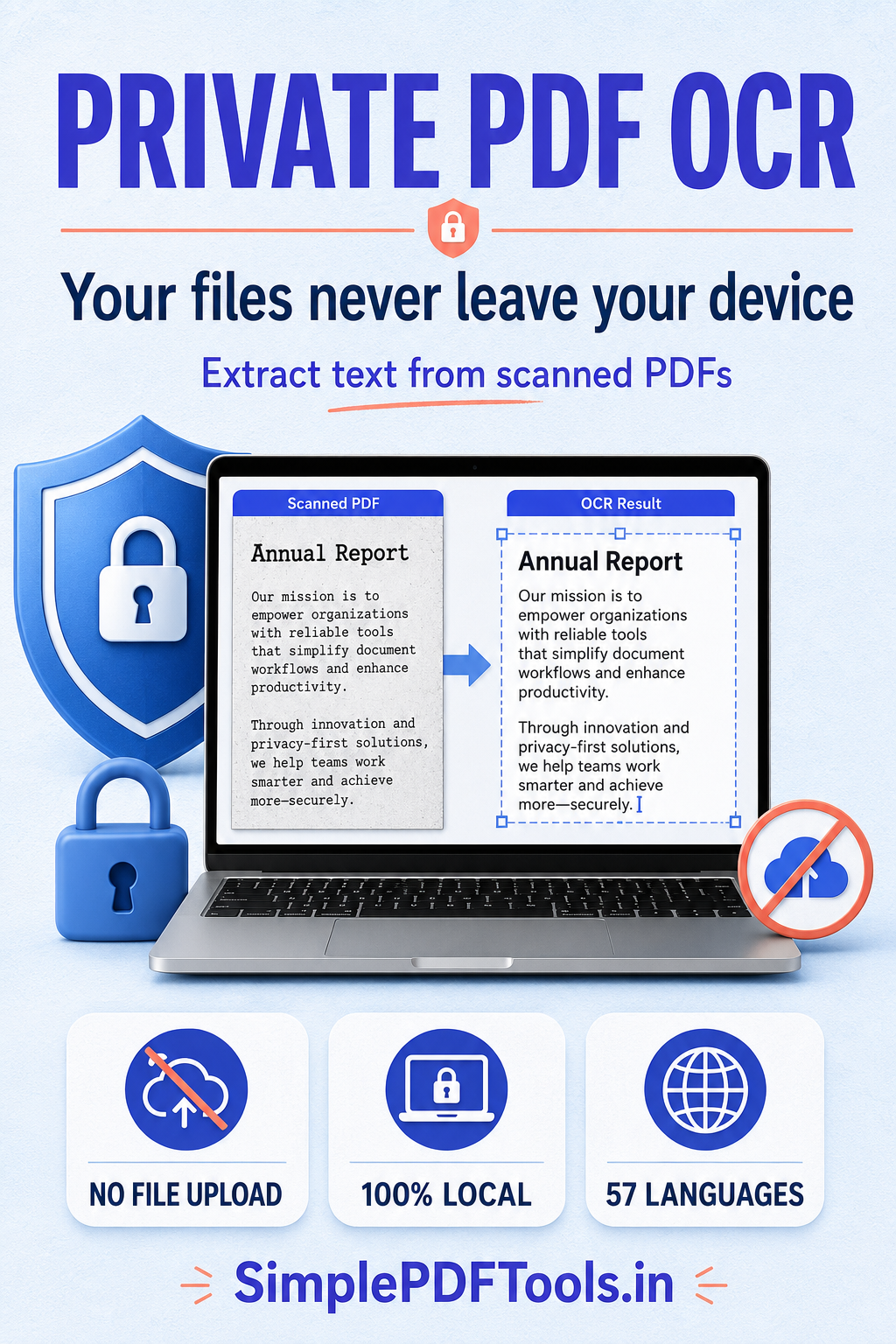
Scanned documents often contain personal or confidential information: IDs, invoices, academic documents, contracts, medical letters, or business records. Before using any OCR website, check where the file is processed and whether it is kept after conversion.
SimplePDFTools is built around browser-based processing. The goal is simple: you choose the file, it is processed on your device, and you keep control of it.
Frequently asked questions
Can I convert a scanned PDF to editable text for free?
Yes. Use the PDF to OCR Converter to identify text from scanned pages and export the result without creating an account.
Will OCR preserve the exact original formatting?
OCR focuses on recognizing text. Simple layouts generally convert best. Tables, unusual fonts, handwritten notes, and complex page designs may need review after conversion.
Can OCR read Hindi, Tamil, Telugu, Arabic, or Chinese?
Yes. The tool supports 57 languages. Choose the correct source language for the clearest result.
Does my PDF upload to a server?
The tool is designed for browser-based processing, keeping your selected document on your device.
What is the difference between OCR and converting PDF to Word?
OCR identifies words inside scanned image pages. PDF-to-Word conversion is normally used when the original PDF already contains digital text and you need an editable document layout.